How do I connect my legacy account?
Create your account on the new BunnyDoc, then link it to your previous BunnyDoc account from Settings → Legacy Account.
Connecting your legacy account links your workspace to your previous BunnyDoc account, so you and your team can view and download the envelopes you completed there and import your old contacts. It takes a single click once your new account is set up.
Before you start
BunnyDoc finds your legacy account by its email address. The connection only works when the email on your new account is the same as the email you used on your previous BunnyDoc account at app.bunnydoc.com.
Sign up with your old email
If you haven't created your new account yet, sign up with the email address you used on the legacy system. That's all BunnyDoc needs to find your old account.
Step 1: Create your account on the new system
- Go to esign.bunnydoc.com and sign up.
- Enter your details, using the same email address as your legacy account.
- Verify your email address, then sign in.
Verify your account first
Your new account must be verified before you can connect your legacy account. Look for the verification email from BunnyDoc and follow its link.
Step 2: Connect your legacy account
Admins only
Only users with the Admin role can see Legacy Account and connect it. If you're not an admin, ask your workspace admin to do this step.
- Open Settings.
- Under Workspace, click Legacy Account.
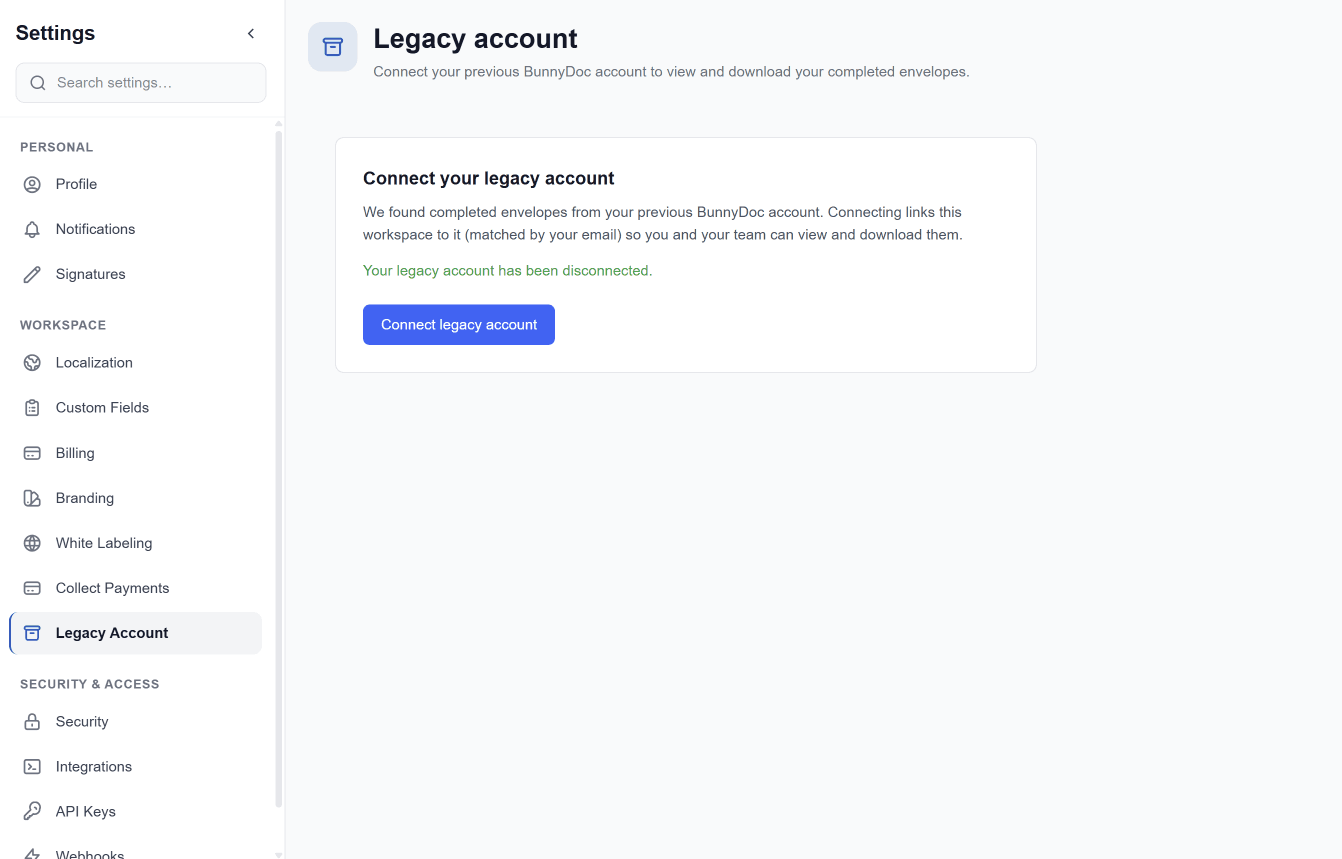
- In the Connect your legacy account box, click Connect legacy account.
- BunnyDoc looks for completed envelopes from a previous BunnyDoc account with the same email as your new account, and links that account to your workspace.
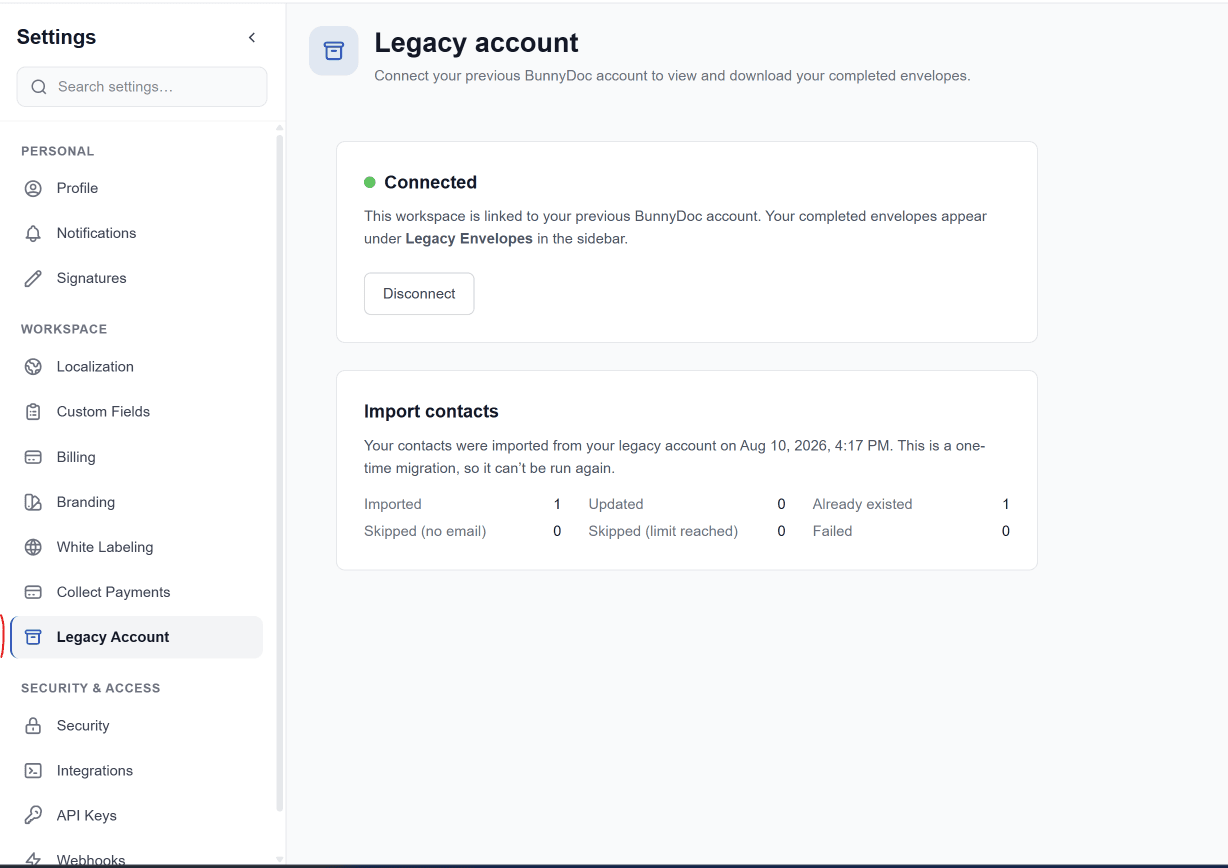
When the connection succeeds, the box shows a green Connected status, and a new Import contacts box appears underneath.
The whole workspace gets access
The connection is made for your workspace, so your team can also view and download the legacy envelopes, not just you.
Disconnect your legacy account
To unlink it, go back to Settings → Legacy Account and click Disconnect. The page confirms that your legacy account has been disconnected, and you can connect it again at any time with Connect legacy account.
When you disconnect, any contacts you've already imported stay in the new system, but you and your team can no longer see your legacy envelopes until you connect again.
What's next
Moving from the legacy system
Connect your old account to the new BunnyDoc, bring your contacts across, and keep access to every envelope you signed before the move.
How do I import my contacts from the legacy system?
Bring the contacts from your previous BunnyDoc account into the new system in one click, once your legacy account is connected.